
How to Score a Match
A complete guide to scoring matches in OPLHub, from setup through completion.
Overview
Match scoring in OPLHub follows three main phases: Setup, Scoring, and Completion
1. Setup
Configure lag winner, first breaker, and race targets
2. Scoring
Record actions as the match progresses game by game
3. Completion
Match ends when a player reaches their race target
Starting a Match
Begin from your schedule to access match setup
Navigate to Your Schedule
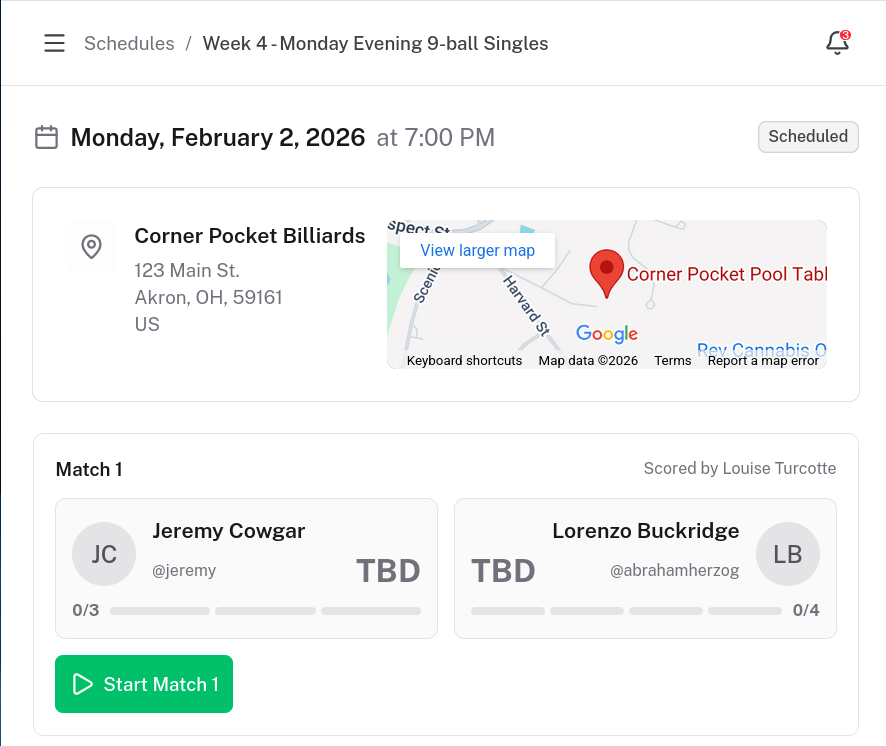
From the Hub, go to Schedules and find your upcoming match. Scheduled matches appear with a 'Score Match' button when it's time to play.
Tap 'Score Match'
The Score Match button takes you to the match setup page where you'll configure the match before starting.
Match Setup
Configure match parameters before play begins
Review Player Information
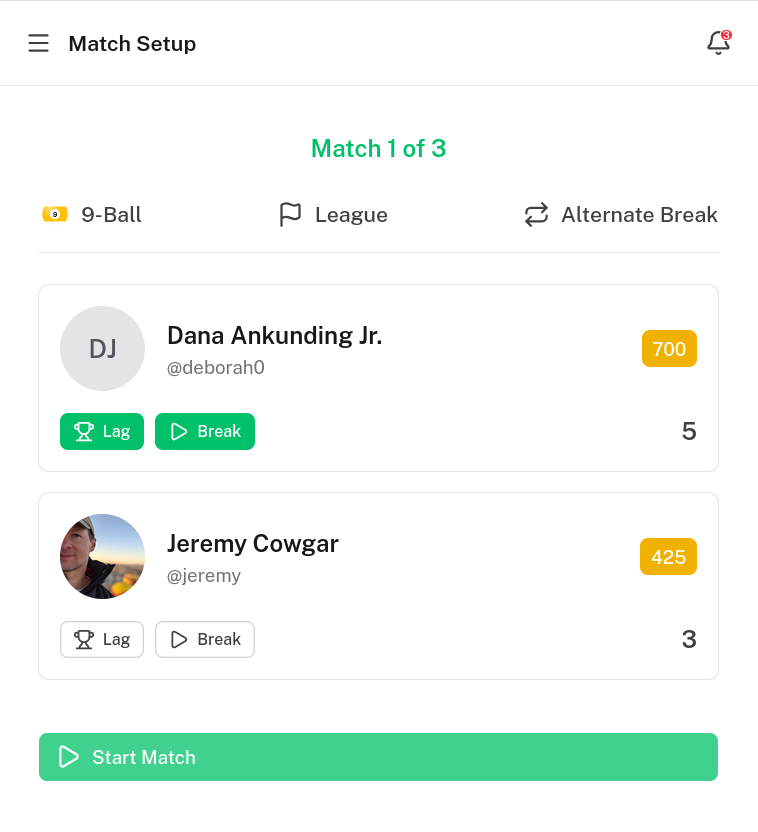
The setup screen shows both players with their avatars and skill levels. Skill levels determine the handicapped race targets for each player.
Select the Lag Winner
Tap the 'Lag' button next to the player who won the lag. This is typically who gets to choose whether to break first.
Tip: When you select the lag winner, they are automatically set as the first breaker. You can change this if the lag winner chooses to give the break.
Confirm First Breaker
The 'Break' button indicates who breaks first. Usually this is the lag winner, but it can be changed if they defer the break.
Adjust Race Targets (Free Play Only)
In free play mode, you can adjust the race targets using the + and - buttons next to each player's race number. League matches use fixed handicapped races.
Note: Race targets are calculated based on player skill levels. Higher-skilled players need to win more games to win the match.
Start the Match
Once lag winner and first breaker are selected, tap 'Start Match' to begin scoring. You'll be taken to the scoring interface.
The Scoring Interface
Understand the layout before recording actions
The Scoring Screen
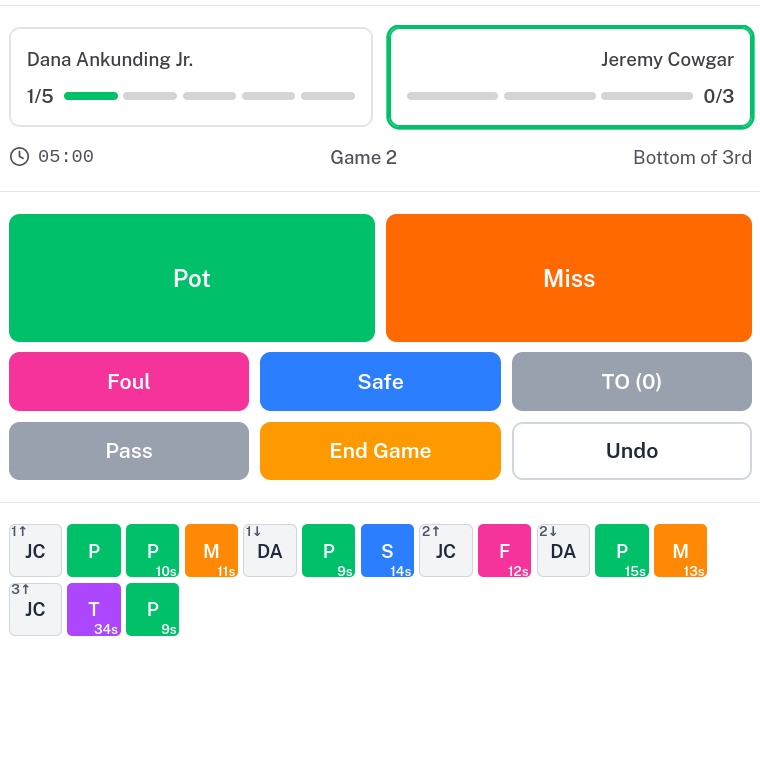
The scoring interface has three main areas: the match header at the top showing scores and race progress, action buttons in the middle for recording shots, and the action history at the bottom.
Match Header
Action Buttons
Color-coded buttons for recording shots. Available actions change based on game phase (break or play) and game type.
Action History
Timeline of recorded actions displayed as compact tiles. Each tile represents either a player coming to the table or an action they took.
Understanding Action Tiles
The action history uses a compact tile system to show the flow of the game.
Player Tiles
Gray tiles show when a player comes to the table. The initials identify the player.
Inning indicator (top-left corner): Shows the inning number and position. ↑ means top of inning (breaker shooting), ↓ means bottom (opponent shooting).
Action Tiles
Colored tiles show the action taken. Colors match the button colors (green = pot, orange = miss, etc.).
Shot clock (bottom-right corner): Shows seconds elapsed since the previous action. Helps track pace of play.
Common Abbreviations
Recording Break Shots
Every game starts with the break phase
When a new game starts, the interface shows break-specific actions. Record what happened on the break shot:
Watch the Break
Observe the break shot carefully. Note whether balls were pocketed, if the cue ball scratched, and whether the break was legal.
Tap the Appropriate Button
Select the button that matches the break outcome. The most common outcomes (Made Ball and Dry Break) are larger for easy access.
Special Break Situations
- 9-Ball Win: If the 9-ball is pocketed legally on the break (9-ball only)
- Pot 8 on Break: The 8-ball pocketed on break (8-ball only)
- 8 + Foul: 8-ball pocketed with a foul on the break
Recording Regular Play
Track shots during the play phase
After the break, the interface switches to play phase actions. Record each shot as it happens:
Record Successful Shots
Tap 'Pot' when the current shooter legally pockets a ball. They continue shooting.
Record Misses
Tap 'Miss' when the shooter attempts a shot but fails to pocket a ball (without fouling). Turn passes to the opponent.
Record Fouls
Tap 'Foul' when a foul is committed (scratch, wrong ball first, no rail, etc.). Opponent gets ball in hand.
Record Safeties
Tap 'Safe' when the shooter intentionally plays a safety shot. Turn passes to the opponent.
Game-Type Specific Actions
Push/Pass Rules (9-ball and 10-ball): After a legal break where a ball is pocketed, the breaker can "push out" to any position. The opponent can then accept the table or pass the shot back.
Using Timeouts
Players get one 60-second timeout per game
Tap the Timeout Button
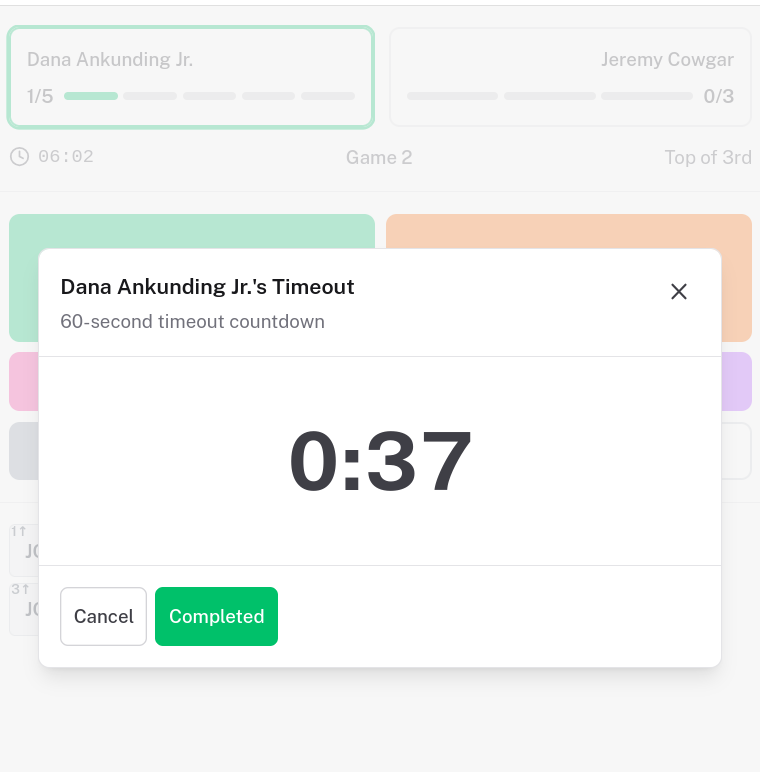
When a player calls for a timeout, tap the 'TO' button. The number in parentheses shows remaining timeouts for the current player.
Timer Countdown
A dialog appears with a 60-second countdown timer. The timer continues running even if the player uses less than 60 seconds.
Complete the Timeout
When the player is ready to resume, tap 'Completed' to close the dialog and record the timeout in the action history.
Note: If the timeout exceeds 60 seconds, the timer switches to overtime display (e.g., +0:15). While there's no automatic penalty, this helps track if timeouts are being abused.
Ending a Game
Record the final outcome when a game ends
Tap 'End Game'
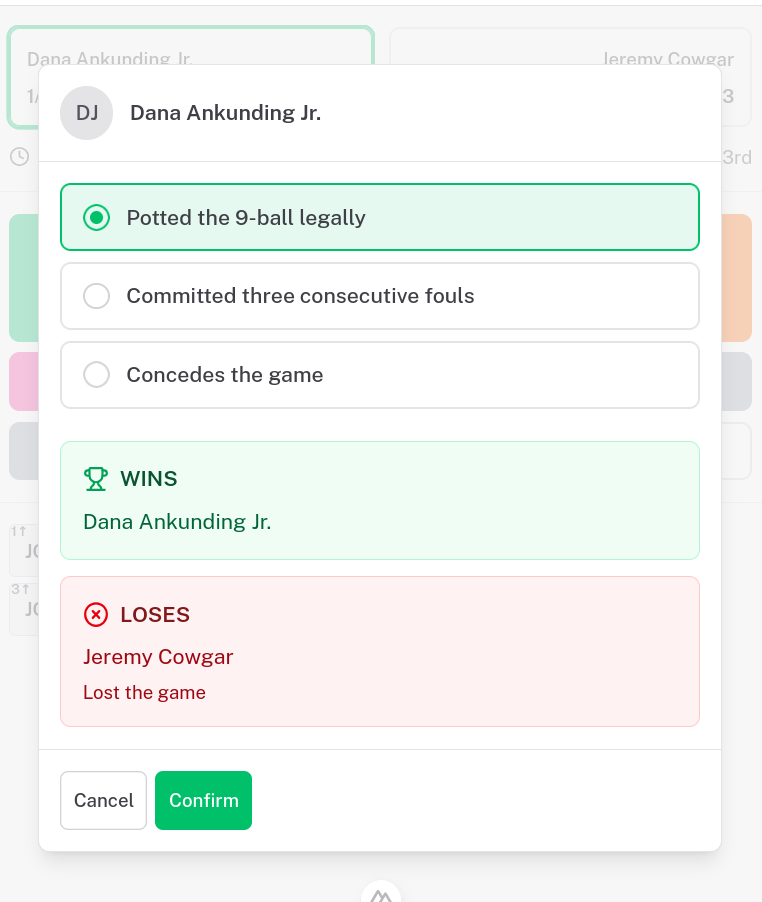
When a game-ending situation occurs (game ball pocketed, early 8, three fouls, etc.), tap the 'End Game' button to open the outcome dialog.
Select the Outcome
Choose what happened from the list of possible outcomes. The options vary by game type:
Review Winner/Loser Preview
The dialog shows a preview of who wins and loses based on your selection. Verify this is correct before confirming.
Confirm the Outcome
Tap 'Confirm' to record the game result. The match advances to the next game, or ends if someone reached their race target.
Correcting Mistakes
Use Undo to fix recording errors
Tap Undo
The Undo button removes the last recorded action. At the beginning of rack one, it opens match setup so you can correct the lag winner or first breaker.
Note: At the beginning of a later rack, Undo asks you to confirm before reverting the previous rack's last action. To change match setup, undo back to an empty first rack, then tap Undo again. Saving setup changes requires an internet connection.
Verify the Correction
Check the action history to confirm the wrong action was removed, then record the correct action.
Match Completion
What happens when the match ends
Race Target Reached
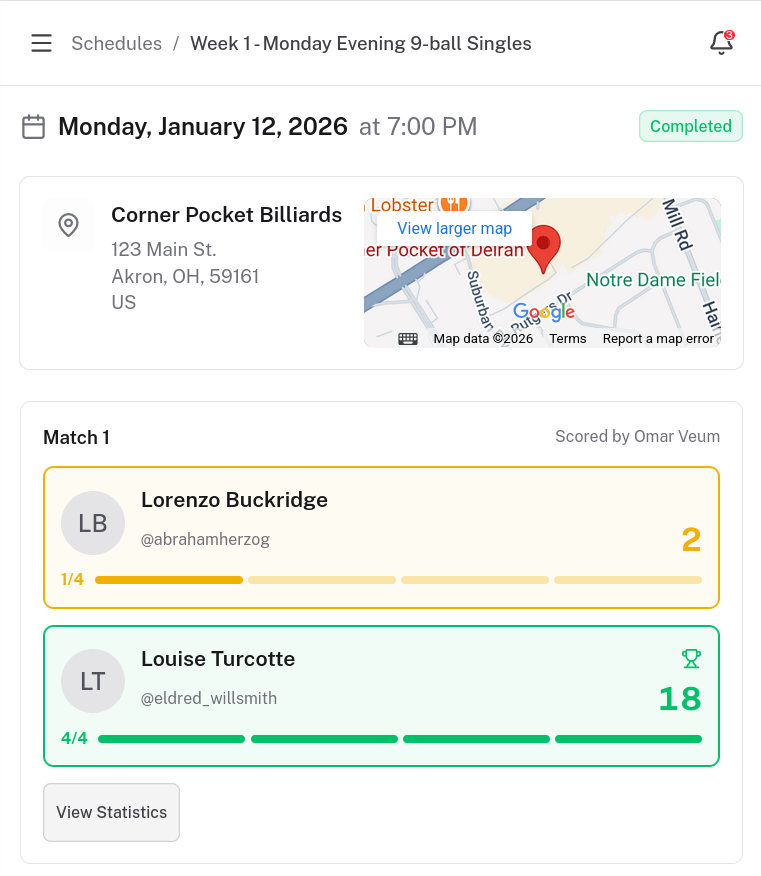
When a player wins enough games to reach their race target, the match automatically ends.
Return to Schedule
After match completion, you're automatically redirected to the schedule page where the final result is displayed.
Match Data Synced
All match data is automatically synced to the cloud. Statistics are updated and the result counts toward league standings.
Quick Reference
Common actions at a glance
Button Colors
Game Type Differences
Scoring Tips
Best practices for accurate scoring
Offline Support
The scoring interface works offline. A cloud icon appears when disconnected, and data syncs automatically when you're back online.
Use Portrait Mode
The scoring interface is optimized for portrait orientation on mobile devices for easy one-handed operation.
Wait for the Final Outcome
Always wait until all balls stop rolling before recording an action. The outcome can change mid-shot — for example, a player may call safe but then accidentally foul. Recording after the balls settle avoids unnecessary undos.
Communicate
If you're unsure about a call (foul vs. clean shot), confirm with both players before recording. It's easier to get it right the first time than to undo and re-record.