
How to View Your Schedule
Find your upcoming matches, check past results, and stay on top of your league calendar.
Navigating to Your Schedule
There are two quick ways to access your schedule.
From the Dashboard
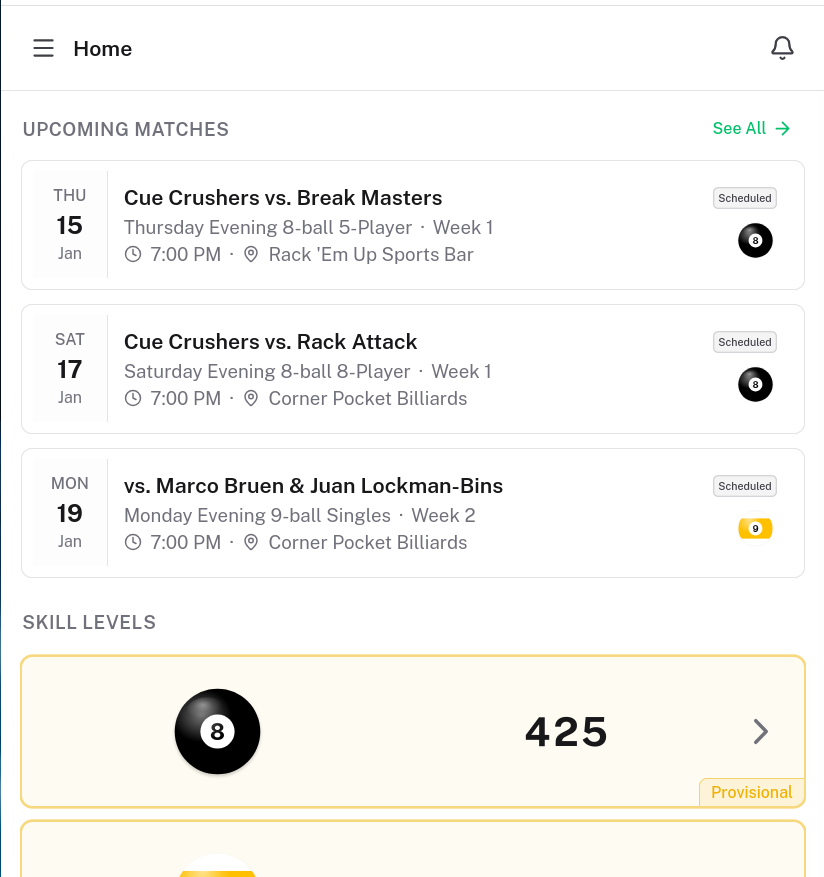
Your dashboard shows upcoming matches at a glance. Look for the 'Upcoming Matches' section which displays your next few scheduled matches. Click 'See All' to view your complete schedule.
From the Sidebar
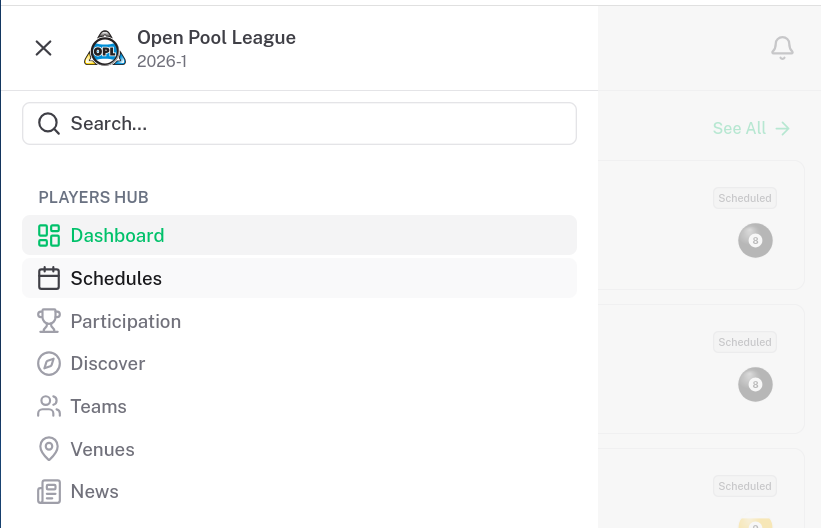
Click 'Schedules' in the main navigation sidebar to go directly to your complete schedule list. This shows all your matches across every division you're participating in.
Understanding Schedule Organization
Your schedules are organized into four sections to help you focus on what matters most.
Past Due
Matches that were scheduled but haven't been completed. These need your attention - the match date has passed but results aren't recorded yet.
In Progress
Matches currently being played. Scoring has started but the match isn't complete yet.
Upcoming
Future matches sorted by date with the soonest first. Plan ahead by checking who you're playing and where.
Past
Completed matches showing your results. Review your match history and points earned.
Tip: Check Past Due First
If you see matches in the Past Due section, prioritize completing them. Either score the match results or request a reschedule to keep your league standing in good shape.
Reading a Schedule Card
Each schedule card shows everything you need to know about a match at a glance.
The Date Block
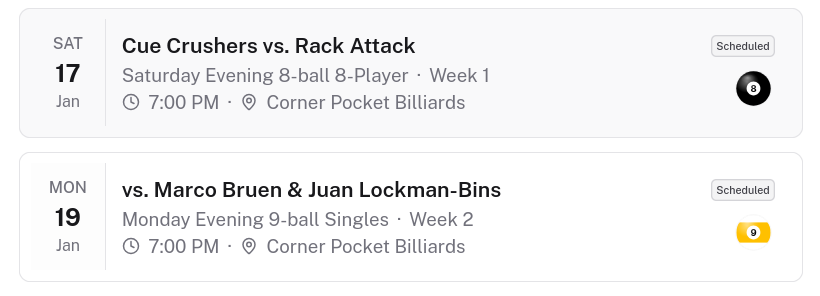
On the left side of each card, you'll see a calendar-style date block showing the day of week, date number, and month. This makes it easy to scan for specific dates.

Opponent and Status
The main area shows who you're playing against and the current match status. For team matches, you'll see your team vs. the opponent team. For singles, you'll see your opponent names. The status badge tells you if it's Scheduled, In Progress, Completed, or needs attention.
Division, Time, and Venue
Below the opponent info, you'll see the division name (like 'Monday Night 9-Ball'), week number, scheduled time, and venue location. A pool ball icon indicates the game type (8, 9, or 10-ball).
Points Earned
For completed matches, you'll see a green points badge showing how many league points you earned. Points range from 0-20 per match based on your performance.
Points appear after a match is completed and scored
Viewing Schedule Details
Click on any schedule card to see the full match information.
Click Into a Schedule
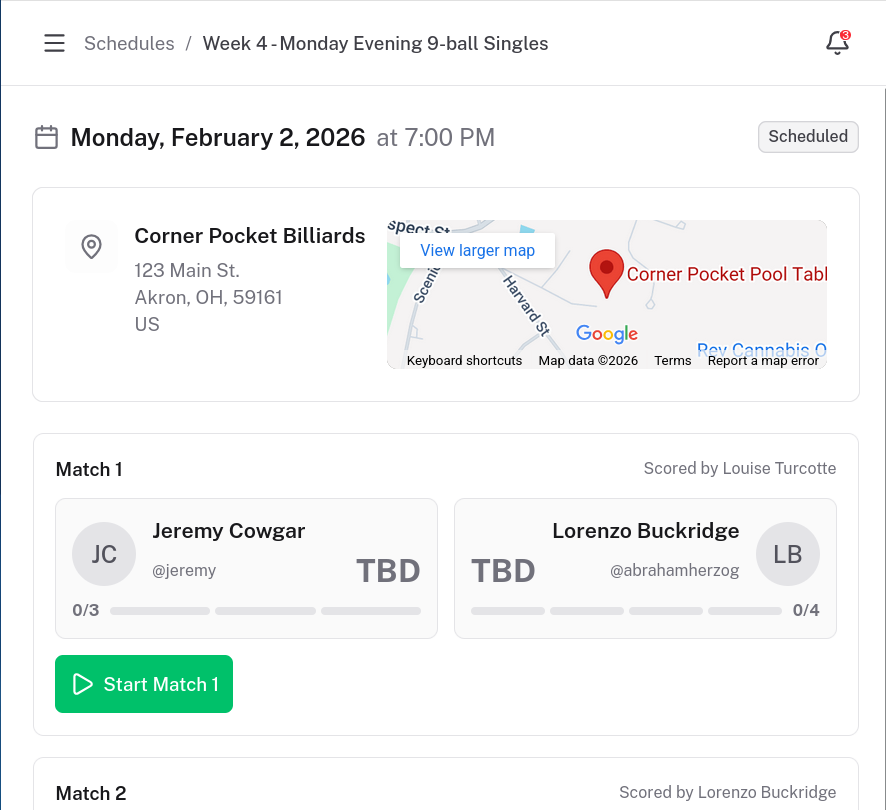
Clicking any schedule card opens the detailed schedule view. This shows expanded information including the complete venue address with map link, all participants, and available match actions.
Available Actions
From the schedule detail page, you can take actions like starting match scoring, requesting a reschedule, or viewing the venue location on a map. Available actions depend on the match status and timing.
Checking Your Division's Full Schedule
View all matches in your division, not just your own.
Navigate to Participation
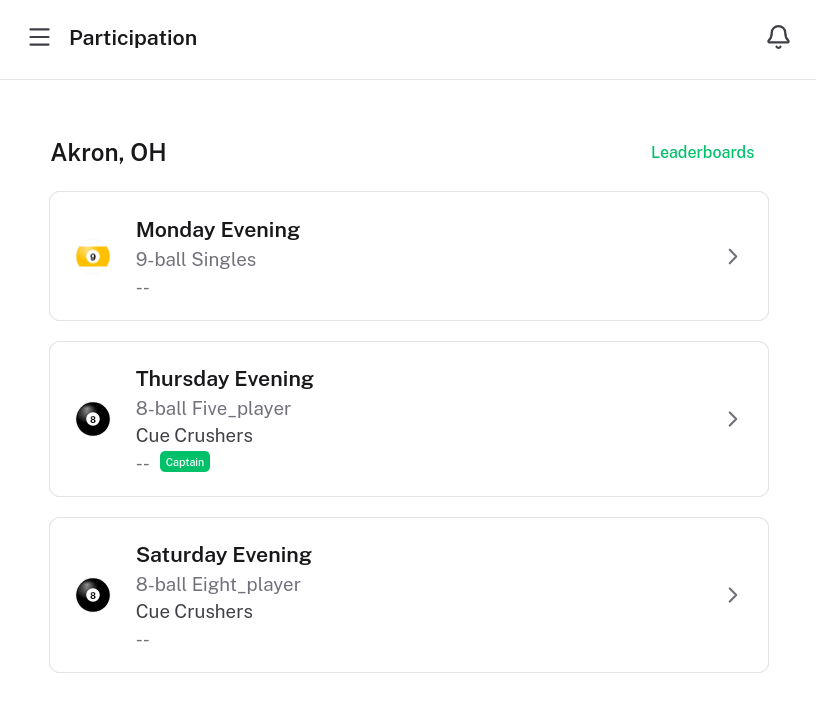
Click 'Participation' in the sidebar to see all divisions you're playing in. Each division card shows your current standings and a quick overview.
View Division Schedule
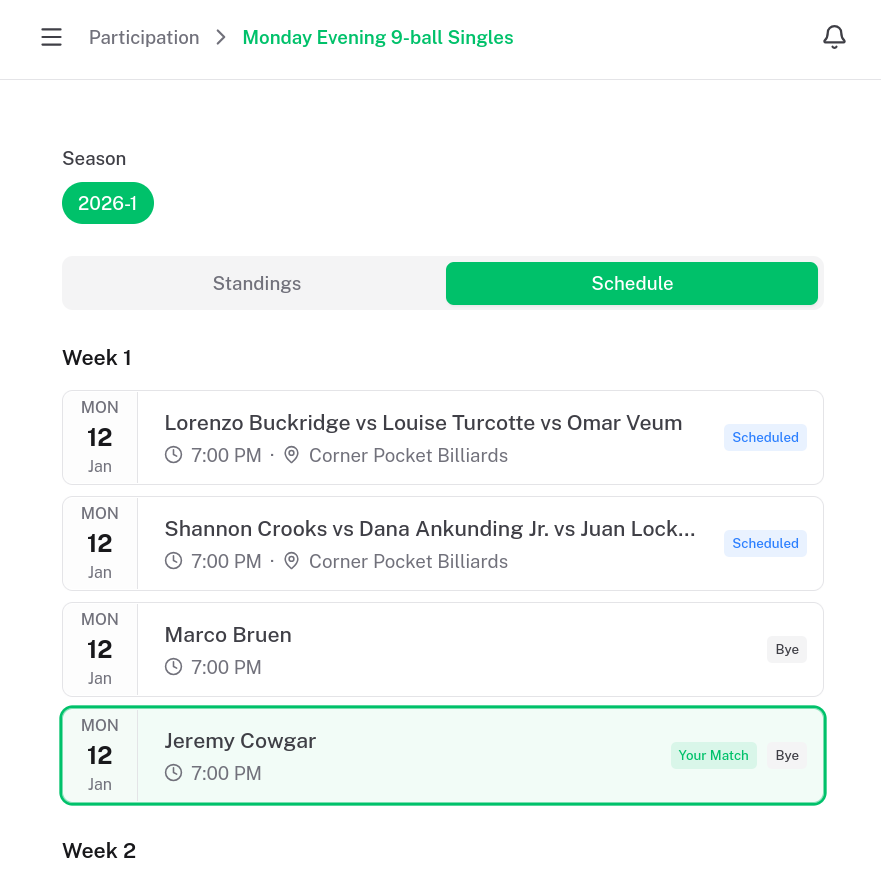
Click on a division card, then select the 'Schedule' tab. This shows the complete division schedule organized by week, including all matches - not just yours. Great for seeing who else is playing and tracking the overall season progress.
Tip: Track Opponents
Use the division schedule to see who your future opponents are playing. It's a great way to scout the competition and understand the division dynamics.
Quick Reference
Key things to remember about viewing your schedule.
Dashboard shows your next upcoming matches for quick access
Schedules page shows all your matches across every division
Past Due matches need attention - complete or reschedule them
Participation lets you view the full division schedule
Click any card to see full details and take actions
Pool ball icon tells you the game type at a glance